
If you regularly work on a specific type of project, you likely have a set workflow, repeating the same steps to achieve a particular result. For a workflow to be truly efficient, it should save you time, and that’s where Photoshop actions come in handy.
Photoshop actions are a recorded series of tasks you can apply to a single or batch of images. They can be as simple as resizing an image or using a color overlay, or more complex, like resizing, applying filters and overlays, and renaming files according to specific rules.
Photoshop actions help achieve specific effects on your images without spending hours recreating them from scratch each time. While you can create your own actions, there are countless Photoshop actions available for download online.
Among them are actions designed to apply vintage effects to your images. In this collection, we have the best free, high-quality vintage and retro Photoshop actions. Download these actions, add them to your design toolbox, and instantly apply them to your photos or designs.
For a more general collection of Photoshop Actions, take a look at this huge collection: 50 Free Time-Saving Photoshop Actions.
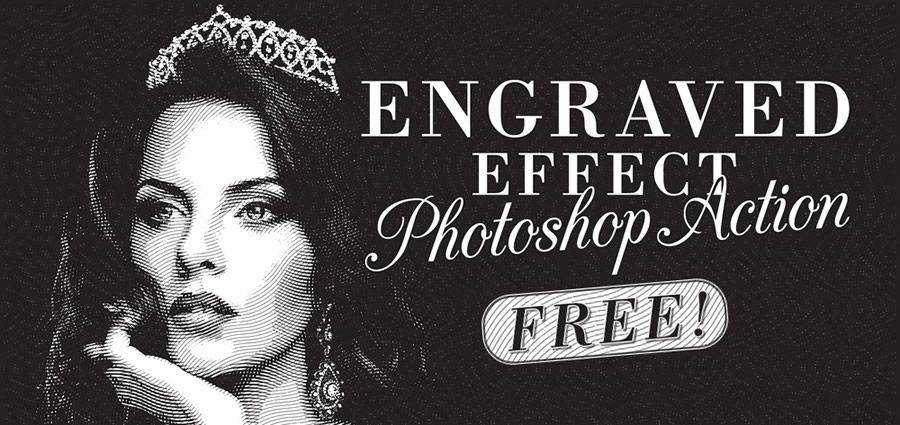
Engraved Illustration Effect Photoshop Actions
Free to Download
Retrograde Retro & Vintage Photoshop Actions
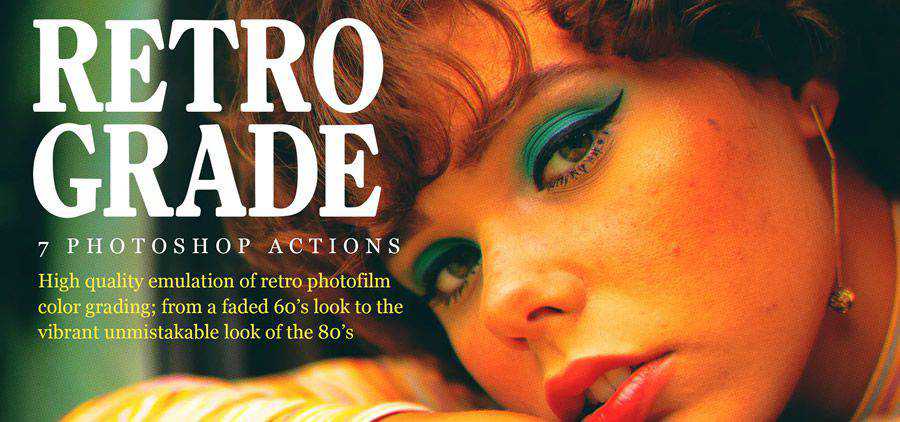
7 Vintage Actions Photoshop Actions
Free to Download

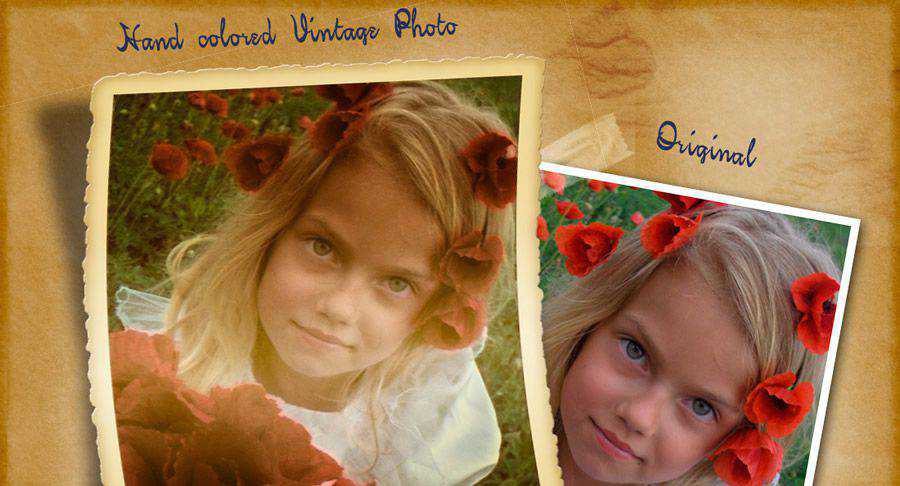
Hand-Colored Vintage Photo Actions
Free to Download
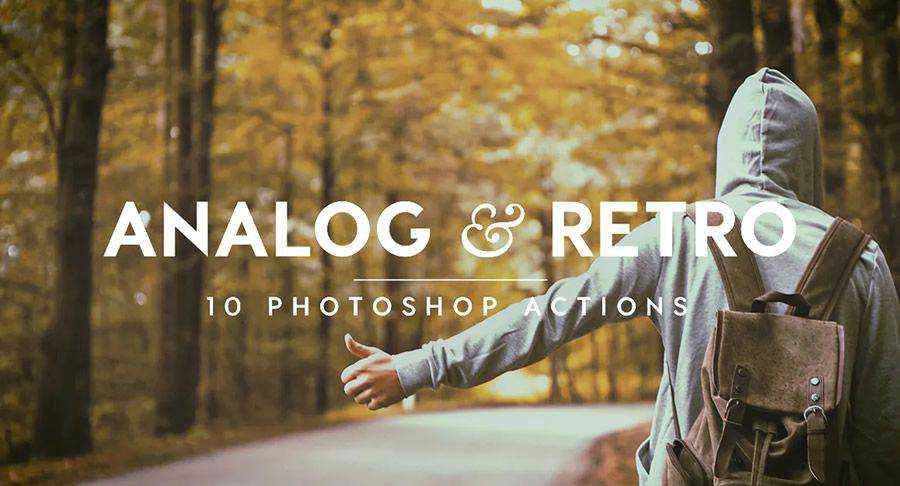
Analog & Retro Photoshop Actions
Matte Vintage Photoshop Actions
Free to Download

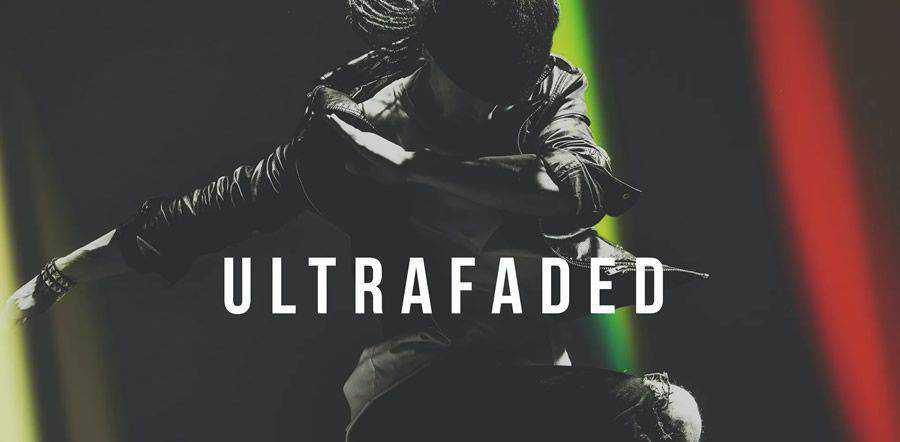
75 Ultra Faded Retro Effects Photoshop Actions
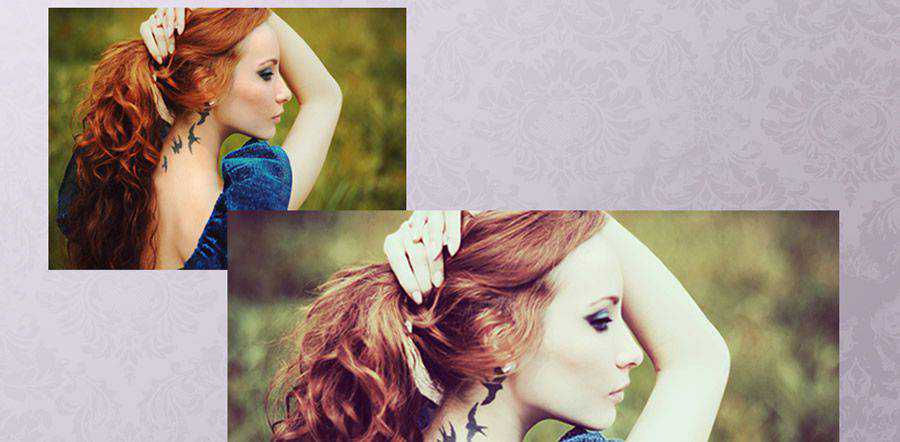
Breeze Vintage Effect Photoshop Actions
Free to Download
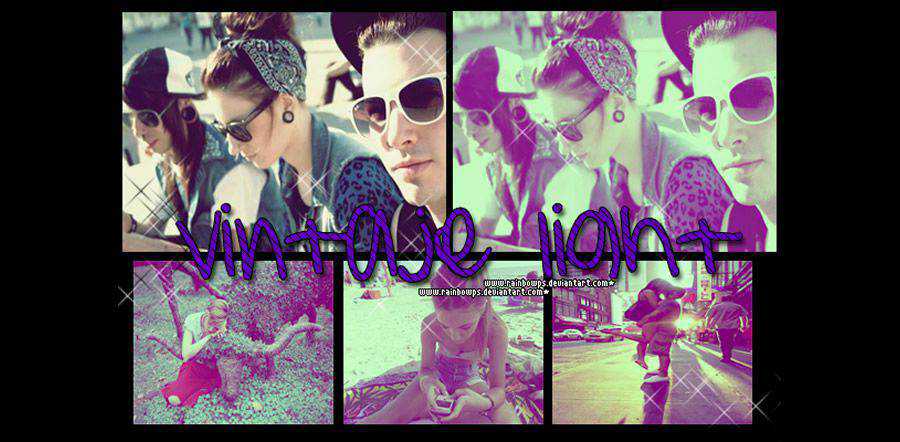
Vintage Light Photoshop Actions
Free to Download
Retro Photography Photoshop Actions
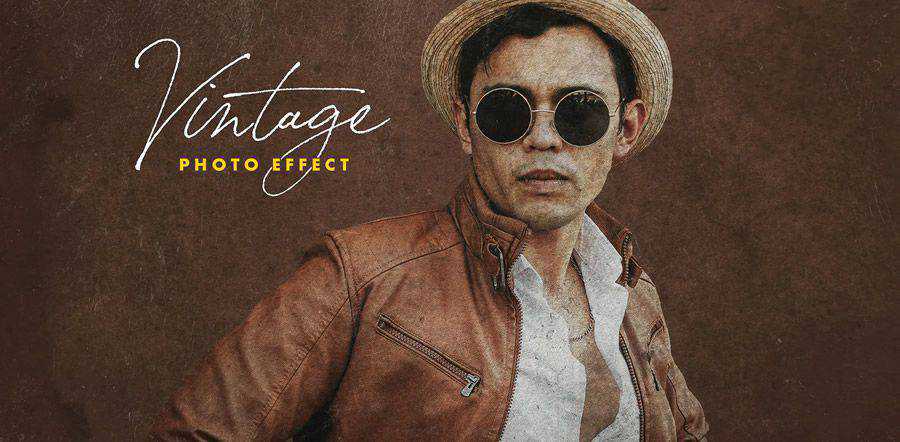
Retro Style Photo Effect Photoshop Actions
Free to Download
Runaway Vintage Photoshop Actions
Free to Download

Retro Photo Kit for Photoshop
Vintage Red Photoshop Action
Free to Download
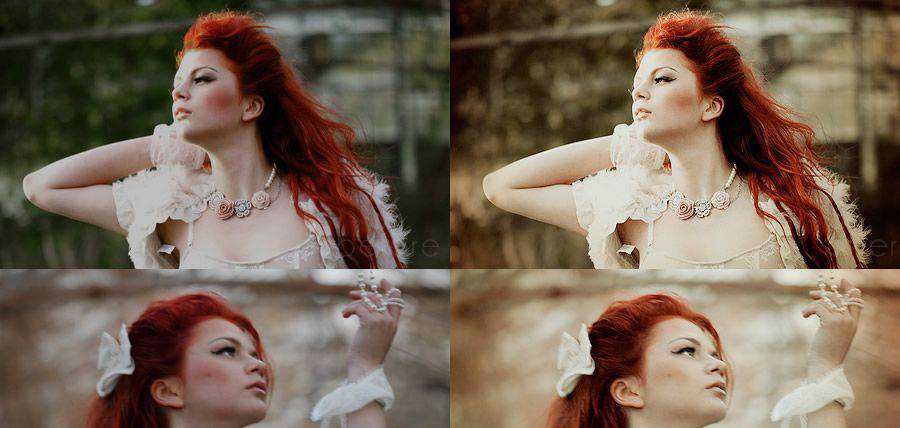
Retro Film Photoshop Actions

Action Vintage Photoshop Actions
Free to Download

Ageing Photo Effect Photoshop Action
Free to Download
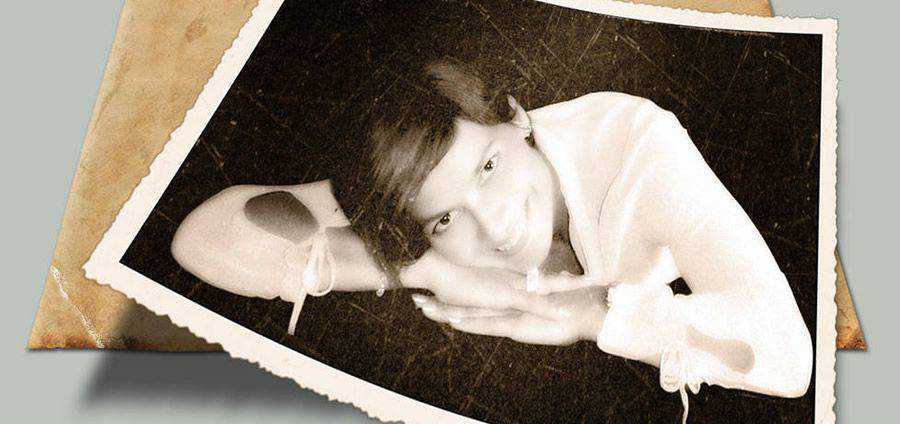
Subtle Vintage Photoshop Actions Pack
Free to Download

Grungy Vintage Photoshop Actions
Free to Download

Vintage Effect Photoshop Action
Free to Download
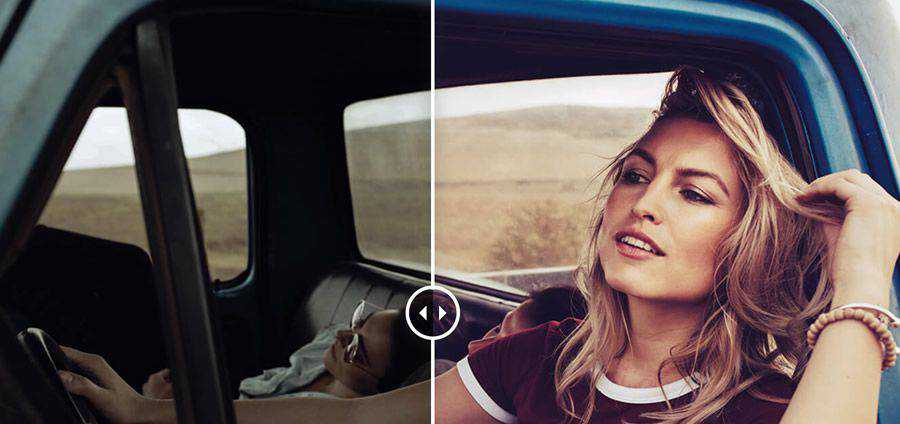
Stylish Vintage Photoshop Actions
Free to Download

SweetPea Country Vintage Photoshop Action
Free to Download

Mondelcore Vintage Photoshop Action
Free to Download
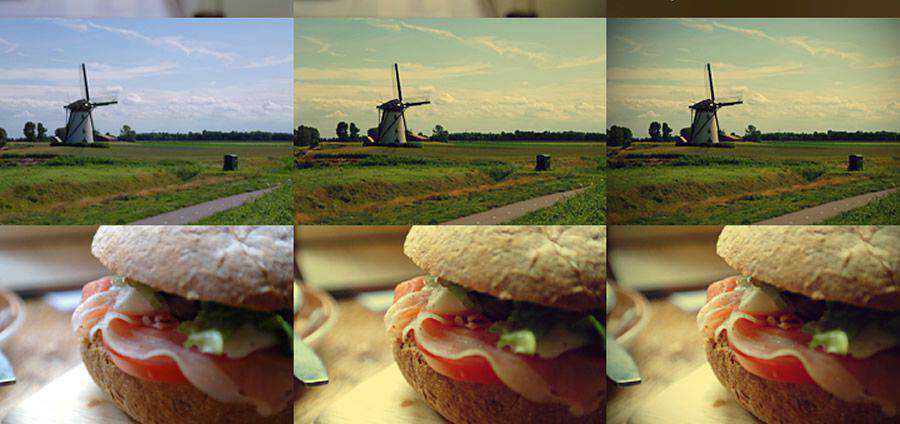
Vintage Effect II PS Actions
Free to Download
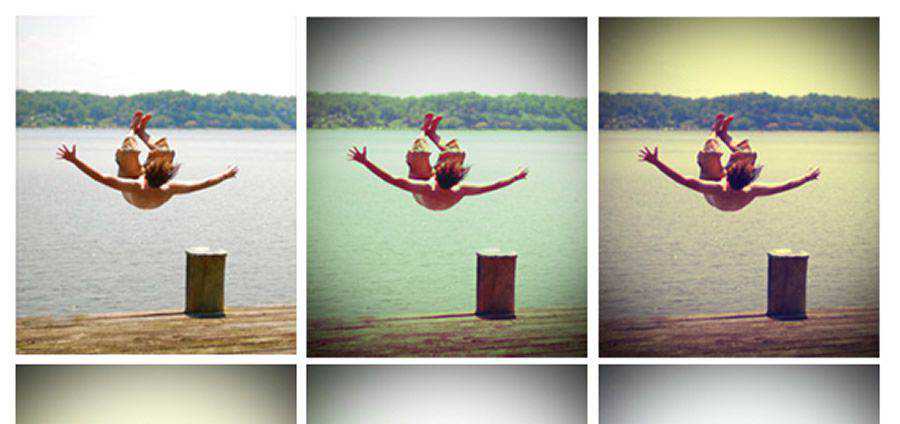
Vintage Photo Effect PSD & Action
Free to Download
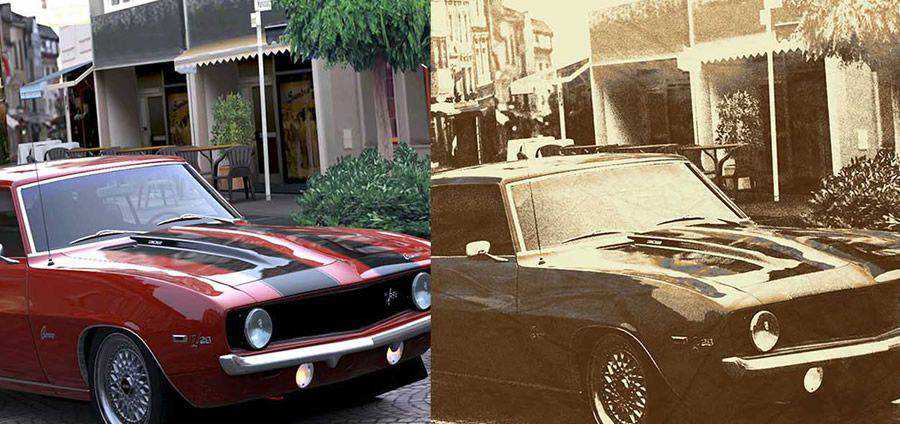
Vintage Effect Photoshop Actions
Free to Download

Sweet Vintage Photoshop Actions
Free to Download
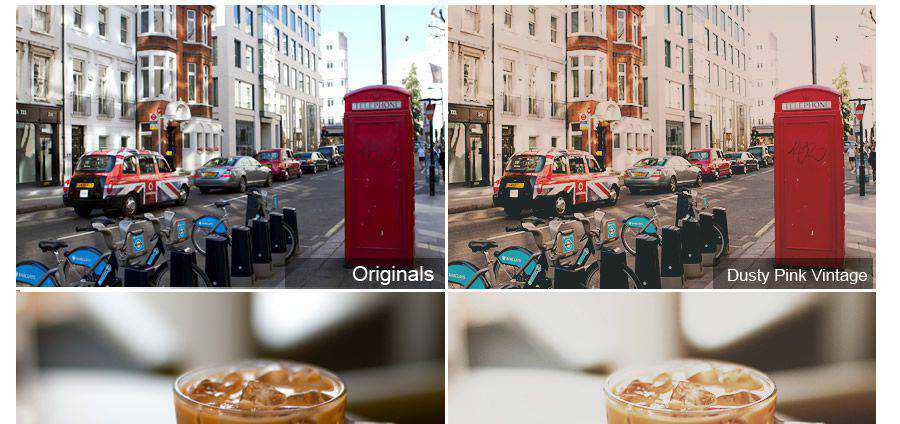
LT’s Vintage Lightleak Photoshop Action
Free to Download
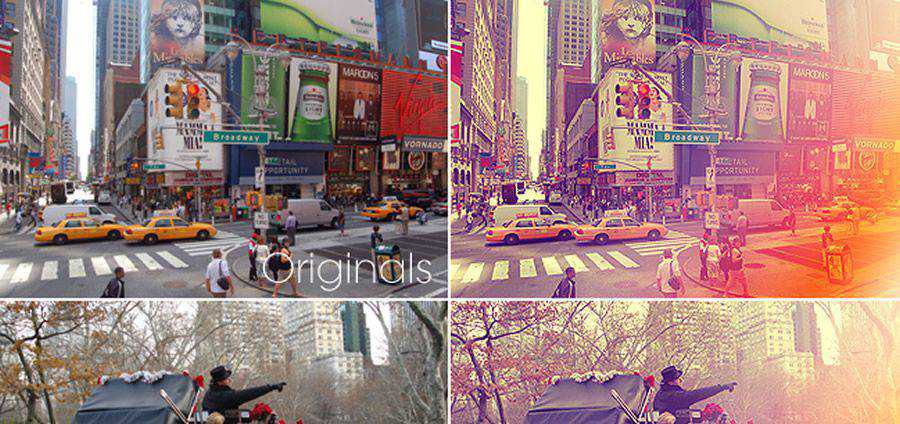
Rocketlaunch Retro/Vintage Photoshop Actions
Free to Download
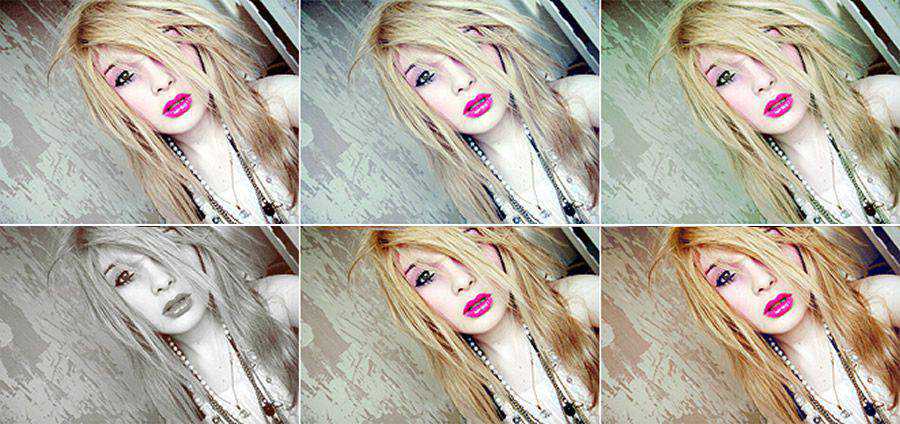
Buttercream Vintage Photoshop Action
Free to Download
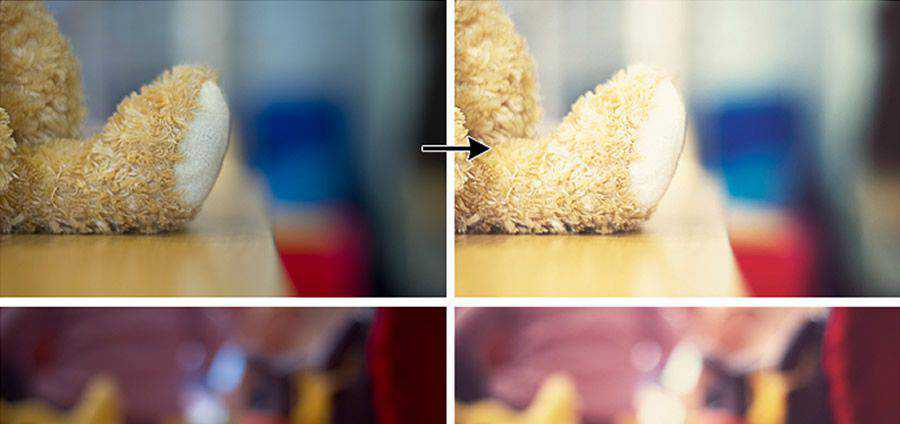
Coffee Cup Photoshop Actions
Free to Download
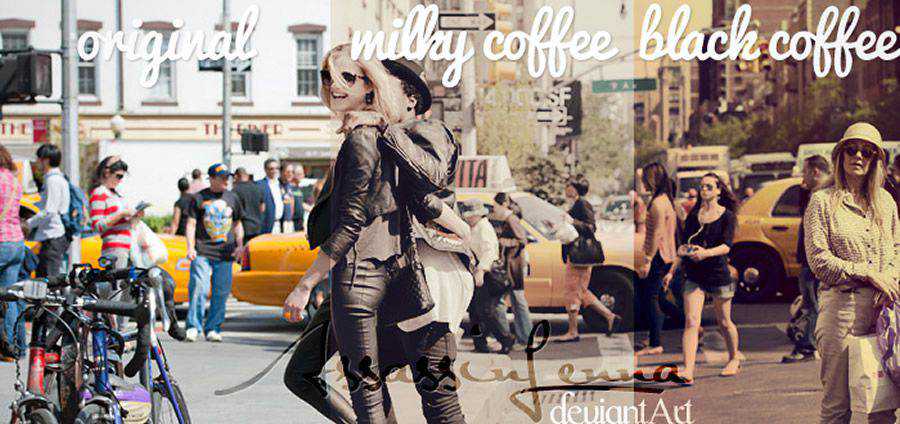
SweettEmottion Vintage Photoshop Action
Free to Download

Vintage Gradient Photoshop Action
Free to Download

Vintage Love Photoshop Action
Free to Download
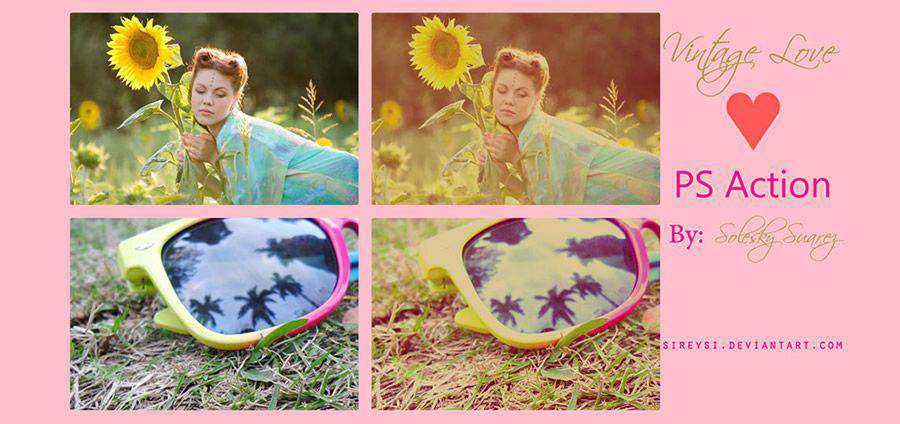
Vintage Effect Photoshop Action
Free to Download
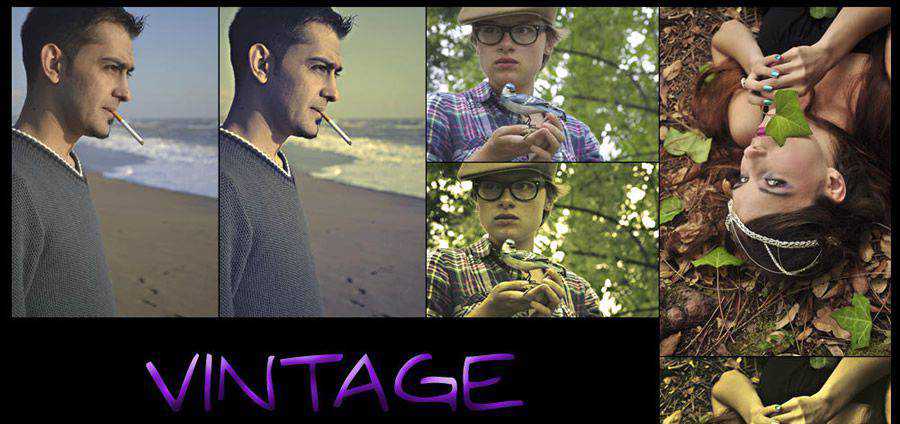
Whimsical Dreams Vintage Photoshop Actions
Free to Download
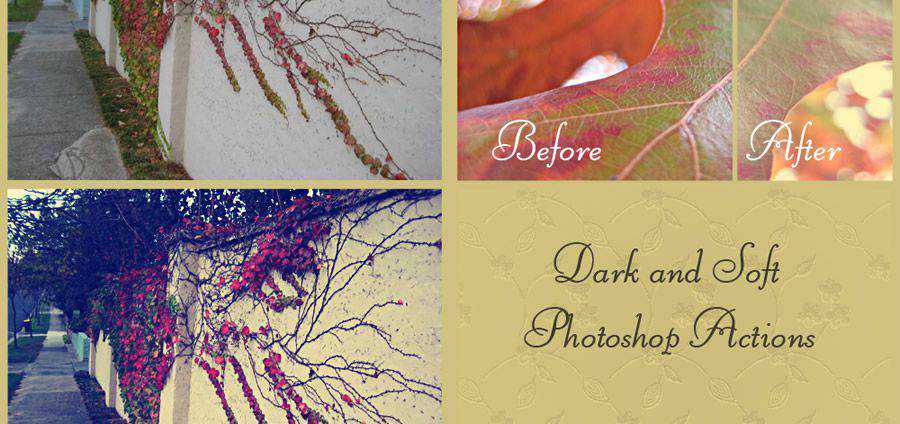
Cool Vintage Photoshop Actions
Free to Download
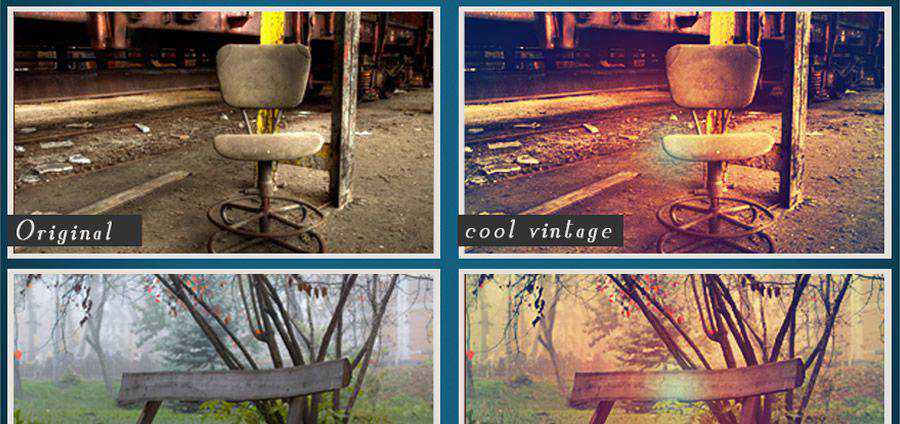
Pink Vintage Photoshop Action
Free to Download

Gum Bichromate Print Photoshop Action
Free to Download
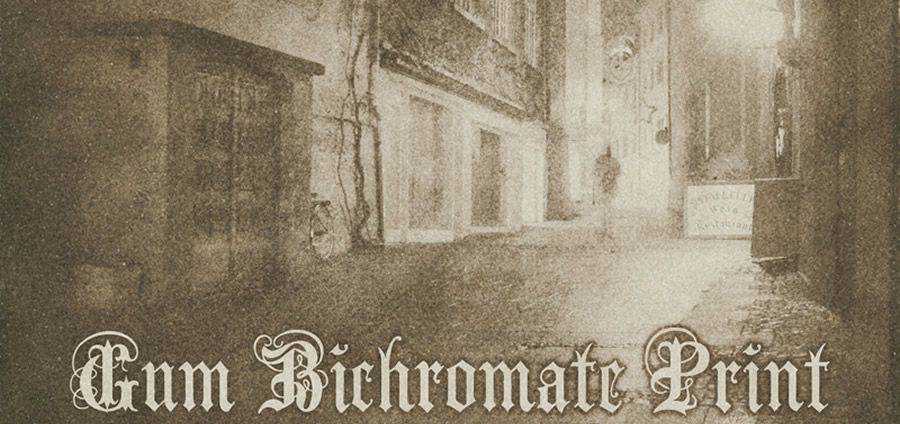
Lithprint Vintage Photoshop Action
Free to Download
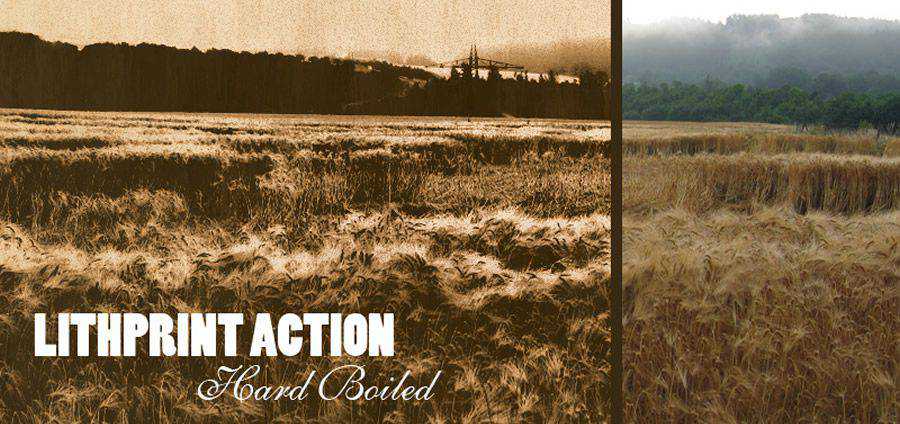
How to Create Your Own Photoshop Action
It’s easy to create your own Photoshop actions. All you have to do is open the Actions palette in Photoshop and click New Action.
A new window will open with various options for creating your new action. You can name the action and can place it in a set.
Alternatively, you can assign a shortcut to your created action for quick access. This will help you immediately activate it when needed, and you can use this option for those actions you use regularly.
Now, hit the Record button to record your desired actions. Remember that steps like selection sizes, saving, and other specific steps will also be duplicated. So, you must be careful to keep your steps as generic and simple as possible.
When finished, click the Stop button in the action menu. If you want to apply the action on another file, click the Play button.
Installing Photoshop Actions
There are several ways to install Photoshop actions.
You can drag the downloaded actions into the Actions folder that you will find within the Presets folder in your Photoshop application folder. This is the easiest way to install Photoshop actions.
Alternatively, you can use the little arrow on the right of the actions menu, then click Load Actions. This will also install the downloaded actions into Photoshop quickly.
Related Topics
Top