
You may associate website spam with things like phony user accounts, senseless contact form entries, and incoherent blog comments. However, spammers can also hit other parts of your website. WooCommerce is a prime example.
Spam bots are known to order products using fake or stolen payment credentials. You may also notice them using offline payment gateways, such as Cash on Delivery or Direct Bank Transfer (BACS).
These activities are, at the very least, annoying. Your inbox and dashboard will become cluttered with illegitimate orders. However, there’s also some danger involved. A spammer using a stolen credit card can result in fraudulent charges. That impacts both you and the victim.
That’s why it’s important to take action against spammers. We’ll show you how to protect your WooCommerce site without disrupting legitimate customers. It’s easier than you think!
Steps for a Spam-Free WooCommerce Shop
There are several anti-spam WordPress plugins on the market, and some are compatible with WooCommerce. Thus, it’s OK to choose the option that works best for you.
For our purposes, we’ll go with Simple CAPTCHA Alternative with Cloudflare Turnstile. Why? It’s easy to set up, and we’ve had good luck with Cloudflare’s Turnstile product.
Turnstile will “challenge” suspicious traffic by requiring them to check a box within a widget. Meanwhile, the widget won’t interrupt legitimate users. It’s an effective and hassle-free way to keep spammers at bay.
Note: There’s also a version of this plugin that uses Google’s reCAPTCHA if you’re so inclined.
Step 1: Create Cloudflare Keys
The first step is to create a free Cloudflare account and generate API keys for use on your website. The plugin’s author has a guide for obtaining your Cloudflare keys.
Step 2: Install Simple CAPTCHA Alternative with Cloudflare Turnstile
Next, it’s time to install the plugin:
- Log in to your WordPress website and navigate to Plugins > Add Plugin.
- Search for “Simple CAPTCHA Alternative with Cloudflare Turnstile”.
- Install and activate the plugin.
Step 3: Configure the Plugin
Let’s configure Simple CAPTCHA Alternative with Cloudflare Turnstile by navigating to Settings > Cloudflare Turnstile.
Here’s what to do inside the plugin’s settings panel. There are several ways to customize the plugin’s behavior. However, we’ll focus on the bare minimum to protect your store:
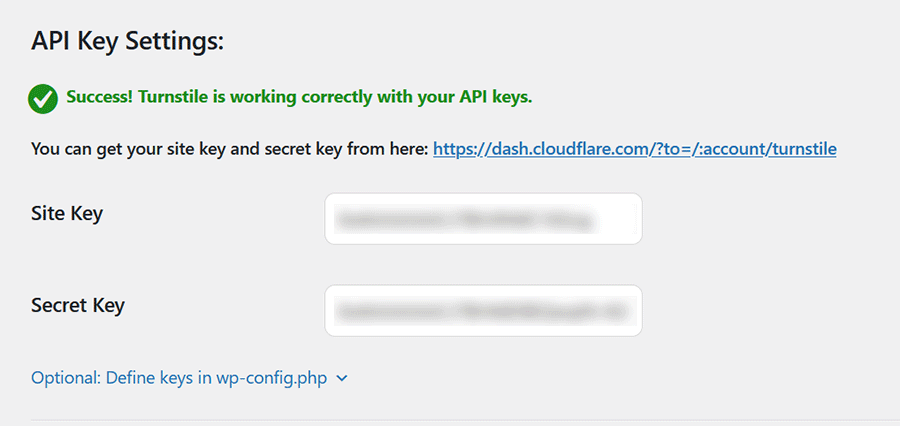
- Enter your Cloudflare Turnstile API keys (you’ll need both the Site Key and Secret Key).
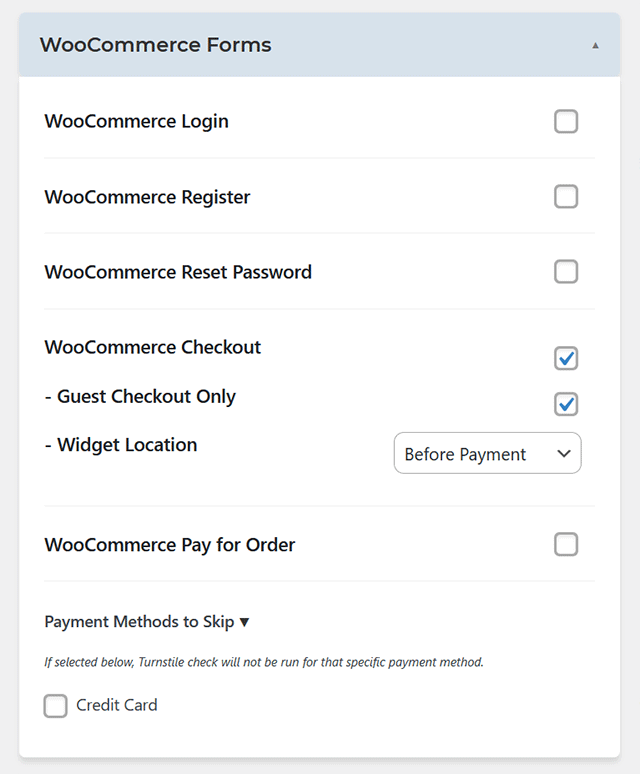
- Use the WooCommerce Forms section to enable Cloudflare Turnstile on the areas you want to protect. We recommend the WooCommerce Checkout option, as it stops spam orders in their tracks.
Once enabled, you should see the Turnstile widget displayed on your WooCommerce Checkout page.
Other Considerations
As we mentioned, Simple CAPTCHA Alternative with Cloudflare Turnstile has a robust settings panel. That means there are a few other items you might want to consider:
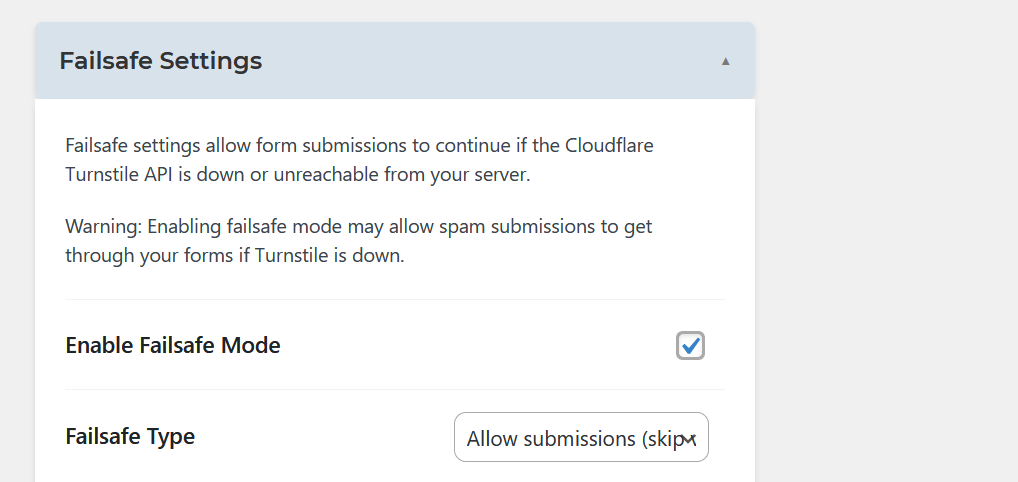
- What happens if there’s an outage? You can protect against a Cloudflare outage by enabling Failsafe Mode. The plugin will either allow all submissions or use reCAPTCHA instead (provided you have API keys). This avoids any disruptions to your site’s customers.
- Would you like to protect other areas of your website? You can enable the Turnstile widget virtually anywhere user input is required. The site’s login, registration, and comment forms are examples. There are also integrations with popular form plugins.
- Should logged-in users see the Cloudflare Turnstile widget? You can limit the widget’s display to “guest” checkouts only. However, we recommend enabling the widget on your site’s registration forms first.
- Do you want to disable the widget for specific payment gateways? This comes in handy if you only want to protect the aforementioned offline payment gateways.
We recommend experimenting with the plugin’s settings to determine what works best for your website. You can always add or remove protection methods as needed.
Rid Your E-Commerce Site of Spam Orders
There is no avenue spammers won’t explore. WooCommerce orders are just one in a long list of places they’ll attempt to wreak havoc. Thankfully, you don’t have to put up with it.
Install Simple CAPTCHA Alternative with Cloudflare Turnstile, and your website will be protected within minutes. You and your clients will gain peace of mind while stopping illegitimate orders from overwhelming your inbox.
Plugins like this one are becoming a necessity as malicious traffic continues to have a field day with WordPress. Be sure to protect yourself!
Related Topics
Top