
The WordPress Block Editor is great for creating custom layouts. There are plenty of core and third-party blocks to choose from. They bring a world of possibilities – all without writing a line of code. Add a block theme, and get a browser-based design and development experience.
There is one valuable thing that WordPress blocks left behind, however: code commenting. They’re common when building custom PHP templates and writing CSS. We use them to provide context for what a code snippet does or why it was implemented.
There are times when that extra context is useful in the Block Editor. For example, you might want to share information about a block with clients or colleagues. Perhaps it’s locked or requires a specific setting to display correctly. Sometimes we need to remind ourselves why we did something.
That’s where the WordPress Notes feature comes in handy. Use it to add notes to specific blocks and even keep a threaded conversation. It’s another way to improve your editorial workflow and provide a quick reference for users.
Here’s a look at how the feature works. We’ll show you how to add and retrieve notes to any block on your site. In addition, we’ll share a few tips and hidden gems worth knowing about.
Sample Project: Let’s Collaborate With Blocks
The WordPress Notes feature is part of the larger Gutenberg Collaboration phase. At the very least, it’s a way to add reminders or have an asynchronous discussion with other site users. That second part is what we’ll focus on here.
We’ll simulate a discussion of colleagues regarding a Group block. We promise it will be quick and easy!
Step 1: Choose a Block
The first step is to open a page or post in the Block Editor and select a block. We’ll choose a Group block at the top of the page. We want to discuss its styling with a colleague.
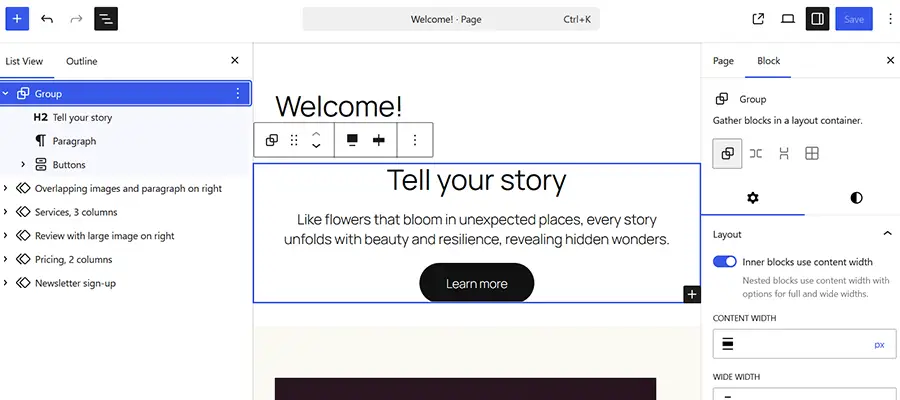
Step 2: Add a Note
Now that we know which block we want to discuss, it’s time to add a note.
- Click on the Options menu (⋮) and select Add note.
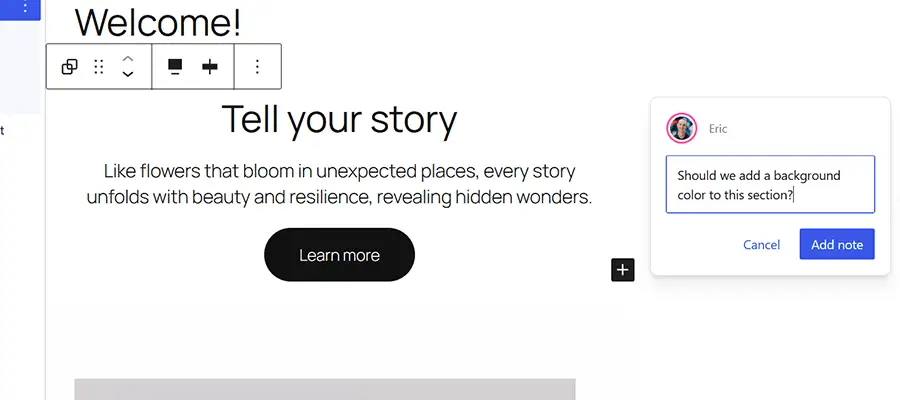
- A note dialog appears on the right side of the screen. We can add our note in this space.
- Click the Add note button to save the note.
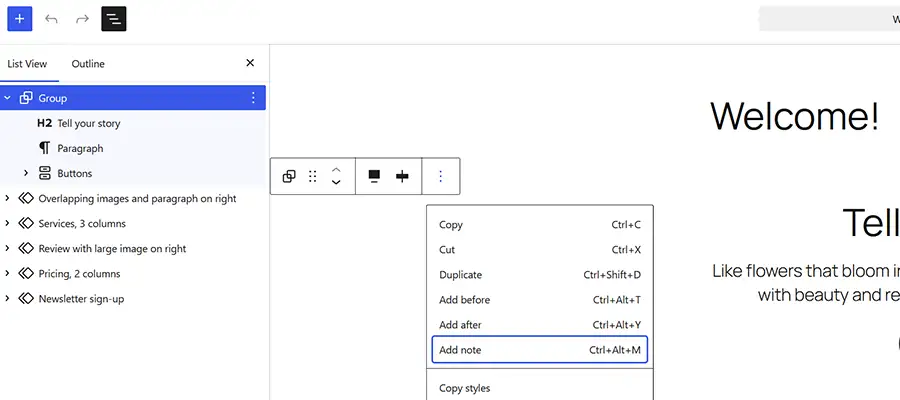
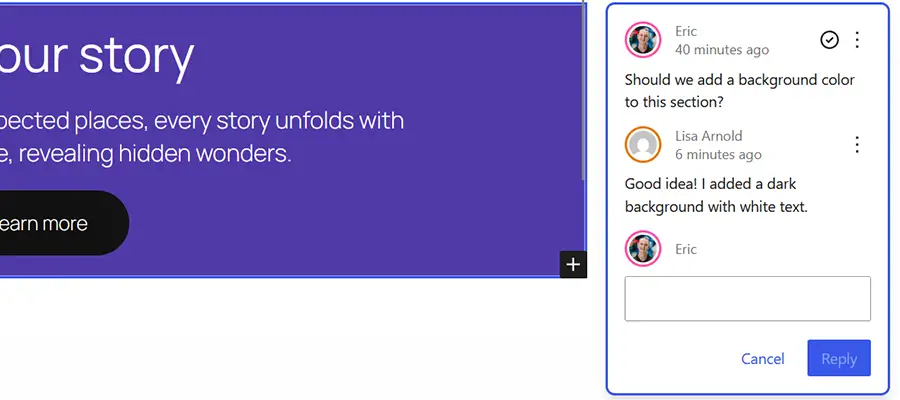
For reference, we asked if our Group block should have a background color to stand out from the rest of the content.
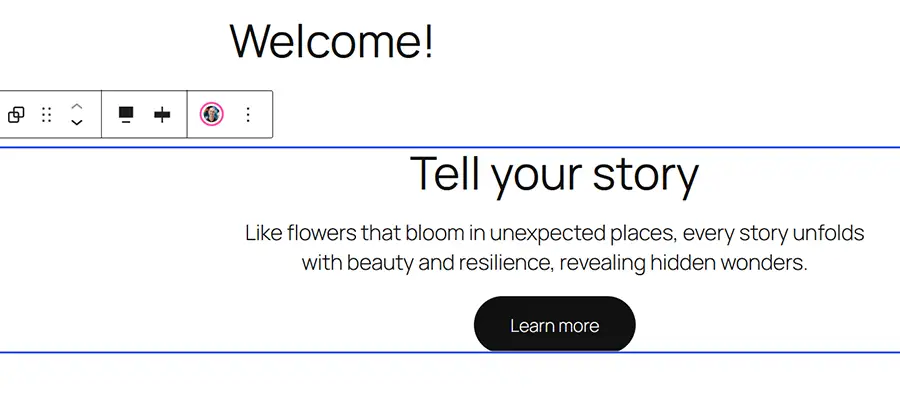
Next, we’ll wait for our colleague to reply to our note. When they click the block in question, they’ll see a user avatar that indicates a note is available.
Step 3: Our Colleague Replies
Here’s a handy feature: WordPress will send you an email when someone replies to your note (it’s based on the existing comment system). As such, we don’t have to keep checking our page for the latest news.
Our colleague replied to our note and acted on our design suggestion. When we visit the page, we notice that their avatar has also been added to the block’s note notification.
Step 4: Reply and Resolve
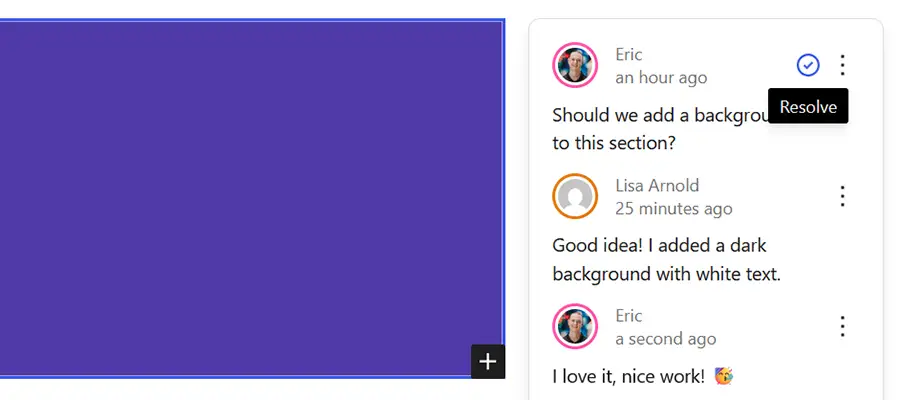
We love what our colleague did to dress up the Group block on the page. The last steps are to reply and mark the note as resolved.
To resolve the note, we’ll click the checkmark on the upper right of the dialog. Keep in mind that the note will stay in place unless we manually delete it from the block.
An Easy Way To Collaborate in WordPress
The WordPress Notes feature is a great way to relay information to others or remind yourself of something important. And it will continue to be enhanced as more collaborative features are added to the content management system (CMS).
Even better, you don’t need a plugin to get started – it’s already built into WordPress. That being the case, there are ways to customize the experience. We recommend checking out this guide to tapping into that potential.
Whether you’re part of a team or working solo, give WordPress Notes a try. You may wonder how you lived without it!
Related Topics
Top