
If you offer WordPress maintenance services, odds are you’ll inherit a website built by someone else. It’s not easy to pick up where the previous developer left off, though. There are so many potential themes and plugin combinations. Thus, taking over feels like opening Pandora’s box.
There are also plenty of nuances that can impact maintenance. The original developer may have used methods you aren’t familiar with, or that go against best practices. Not to mention that you may be the latest in a long line of others to work on the site. If you’re lucky, you’ll find documentation that explains who did what. Short of that, you’re on your own.
That being said, it’s important to know what you’re working with. That’s the key to bringing the site up to snuff with regards to performance and security. Plus, avoiding breakage is crucial to building strong client relationships.
So, what should you know before you start work? We have a checklist of items to look for. Some are obvious, others obscure, but all will give you a better understanding of what makes your client’s WordPress website tick.
1. The Site’s Active Theme and Plugins
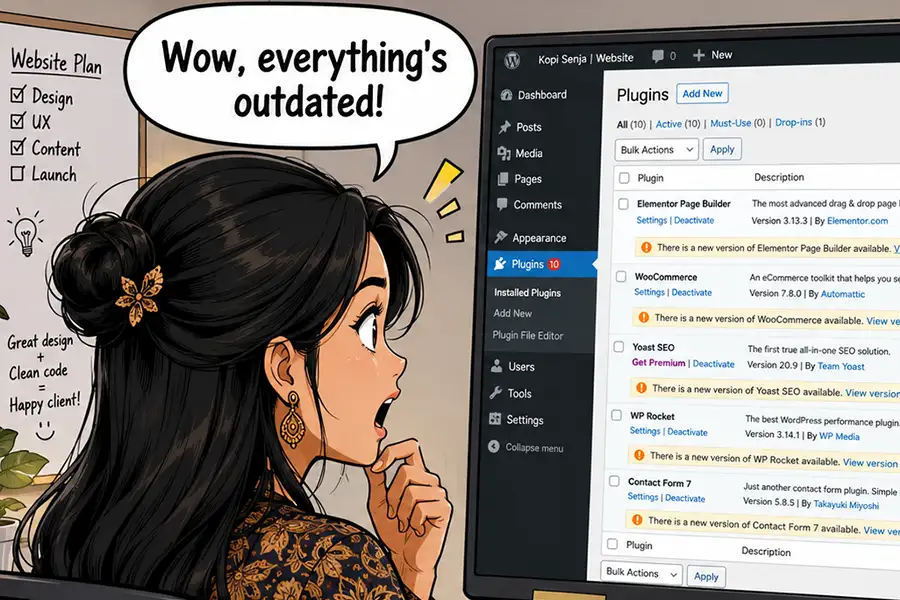
This may seem obvious, but it’s important to know what third-party software is installed on your client’s website. This includes the site’s active theme and plugins. But you’ll want to go deeper than knowing their names.
Take note of each item’s version number and when it was last updated. You may find software that’s outdated or even abandoned by its author. It’s a potentially dangerous situation, as there could be unpatched vulnerabilities lurking beneath the surface. There may be compatibility concerns as WordPress and other dependencies evolve.
You may also identify plugins that are installed but not being used. These items waste resources while also increasing security risks. If you’re unsure of a plugin’s purpose, ask your client.
As for the site’s theme, make a point to inspect its template structure. For example, is it a block or a classic theme? Is a child theme in use? Review the template’s code and determine if there are any areas of concern.
2. Custom Code
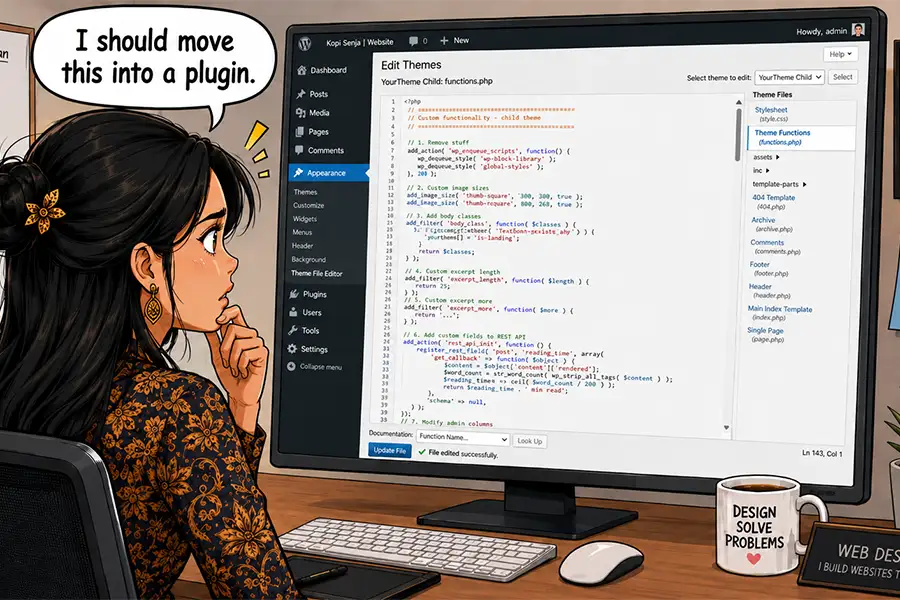
Adding custom code can enhance a website’s functionality. The problem is that there are multiple ways to implement it, and there’s no guarantee of quality. And it’s not always apparent when or how it’s being used.
This is critical information to know, as the site may depend on custom snippets for e-commerce features or other key functions. As such, switching themes or deactivating a plugin could cause problems.
The first place to look for custom code is the theme’s functions.php file. It often serves as a catch-all for random snippets. You never know what you might find!
Custom plugins are also a popular spot for such code. If you don’t recognize a plugin by name and it’s not listed in the official repository, there’s a good chance it’s a bespoke project. Also, be sure to look for any must-use plugins in the /wp-content/mu-plugins/ folder.
Once you identify any custom code, you’ll want to inspect it. Your favorite AI model can help you learn more about what it does and help you spot any potential issues.
3. Web Hosting Provider and Configuration
Web hosting is an important piece of the puzzle, as it impacts site performance, security, and stability. Find out who hosts your client’s website, the hosting package they use, and the server’s configuration.
Pay special attention to the account’s available resources. A hosting package with insufficient memory or CPU cycles will result in slowness or downtime. Shared accounts can also be problematic regarding the spread of malware.
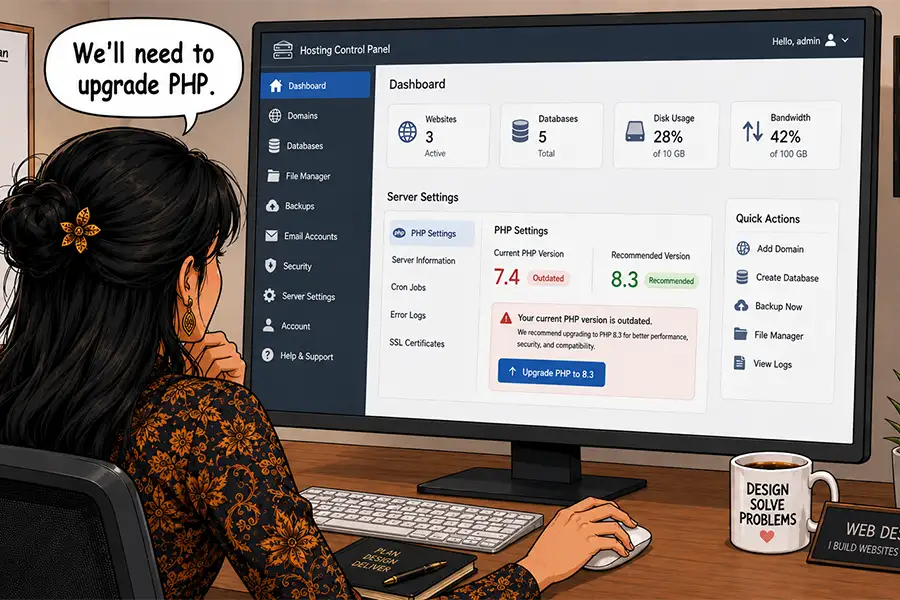
Also, be sure to note which PHP version is running. Old versions are less performant and no longer receive security patches. You’ll want to upgrade, provided the site’s theme and plugins are compatible.
Lastly, ask your client for access to their account, as you’ll need it to manage the server’s configuration and contact technical support. Some hosts provide developer accounts that allow access to technical features only – a good solution for clients who don’t want to share their billing information.
4. Third-Party APIs and Connections
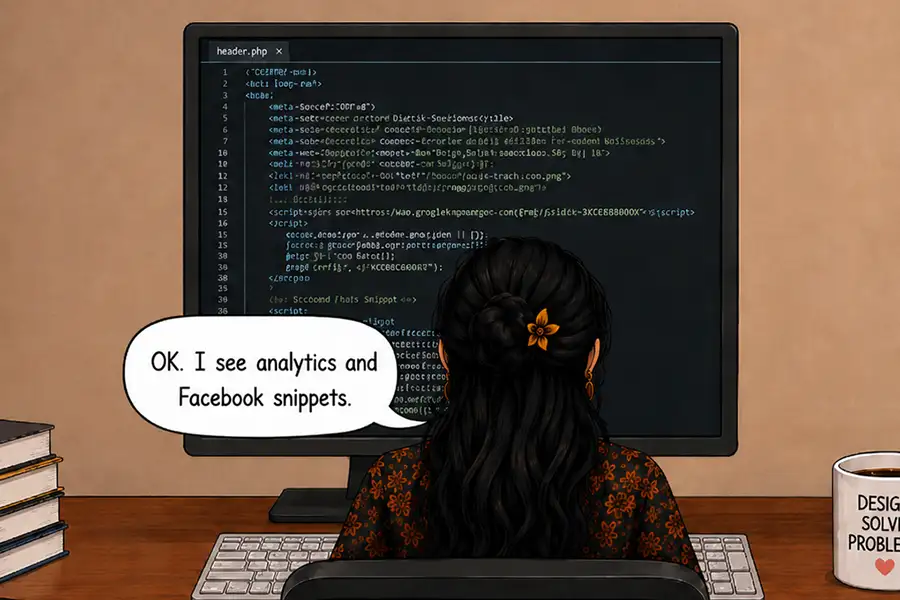
Modern websites often rely on connections to third-party APIs and SaSS providers. It could be something simple, like an analytics suite, social media feed widgets, or a mailing list service. There are also complex integrations with automation tools, payment gateways (particularly on WooCommerce sites), and content delivery networks (CDNs).
Similar to custom code, these connections can be implemented in myriad ways. Some have official plugins, while others may be added via a bespoke web application or directly applied to a theme. In some cases, you may not see any trace of them inside the WordPress admin.
Keep track of every third-party connection you can find, because they may play a critical role in the site’s functionality. At the very least, they impact privacy laws such as GDPR.
Unsure of what outside services the site connects to? Your browser tools’ Network tab will display each call. Privacy scanning tools like Blacklight can also help with spotting tracking scripts, cookies, and related items.
5. Who Manages Their Domain’s DNS
Sometimes, inheriting a WordPress site means moving to a new web host. That usually requires a change to their domain’s DNS configuration. So does connecting to CDNs, mail delivery apps, and services that require domain ownership verification.
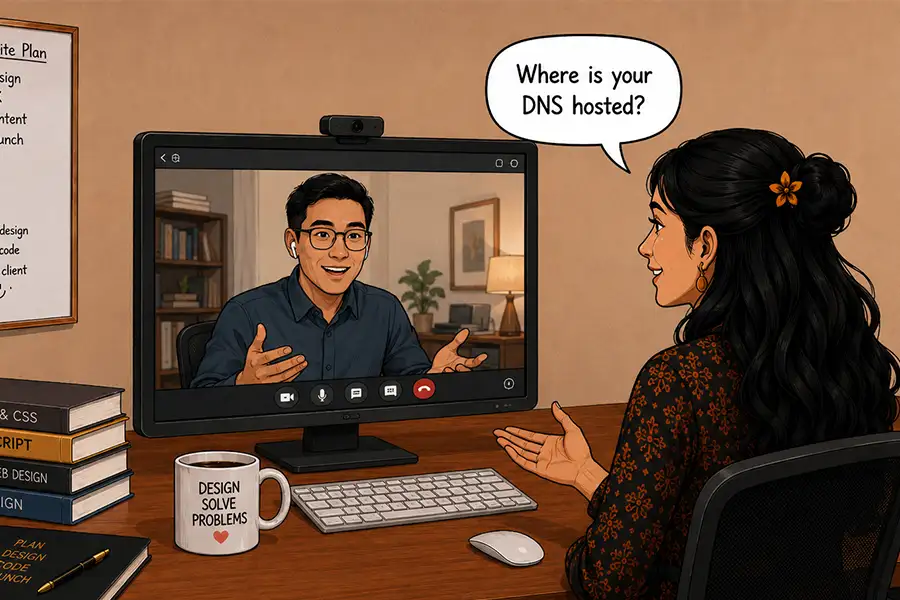
It’s good to know where your client’s DNS is hosted and who manages it. For some clients, their internal IT department will handle these tasks. But a small organization may ask you to take charge.
Keep this information on record – you never know when you’ll need it.
The More You Know (About Your Client’s Website)
The beauty of WordPress is that you can build a site any way you see fit. There are very few limits when it comes to code and design. But that knowledge doesn’t always transfer to the next developer in line. Such unfamiliarity makes maintenance harder. You also risk missing something important during a redesign.
So, take some time and dig into the site’s inner workings. Find out where it’s hosted and what services it connects to. Don’t be afraid to ask questions if you’re unsure of something.
The more you know, the better service you can provide. It could save you from a few headaches and help you build trust with your clients.
Related Topics
Top